 StaffBee
Leave and holidays
Leave without the paper slips.
Set up your leave types and holidays once. Staff ask from their phone, you approve with their balance in front of you, and the day shows up on attendance and salary by itself.
“I told you last week” is not a leave record.
How it works
Three steps, set up once.
- 1
Set your leave types
Casual, sick, earned or your own, each with its yearly balance. Add your holiday list.
- 2
Staff request from the app
Pick the dates, full or half day, and write a reason.
- 3
You approve in one tap
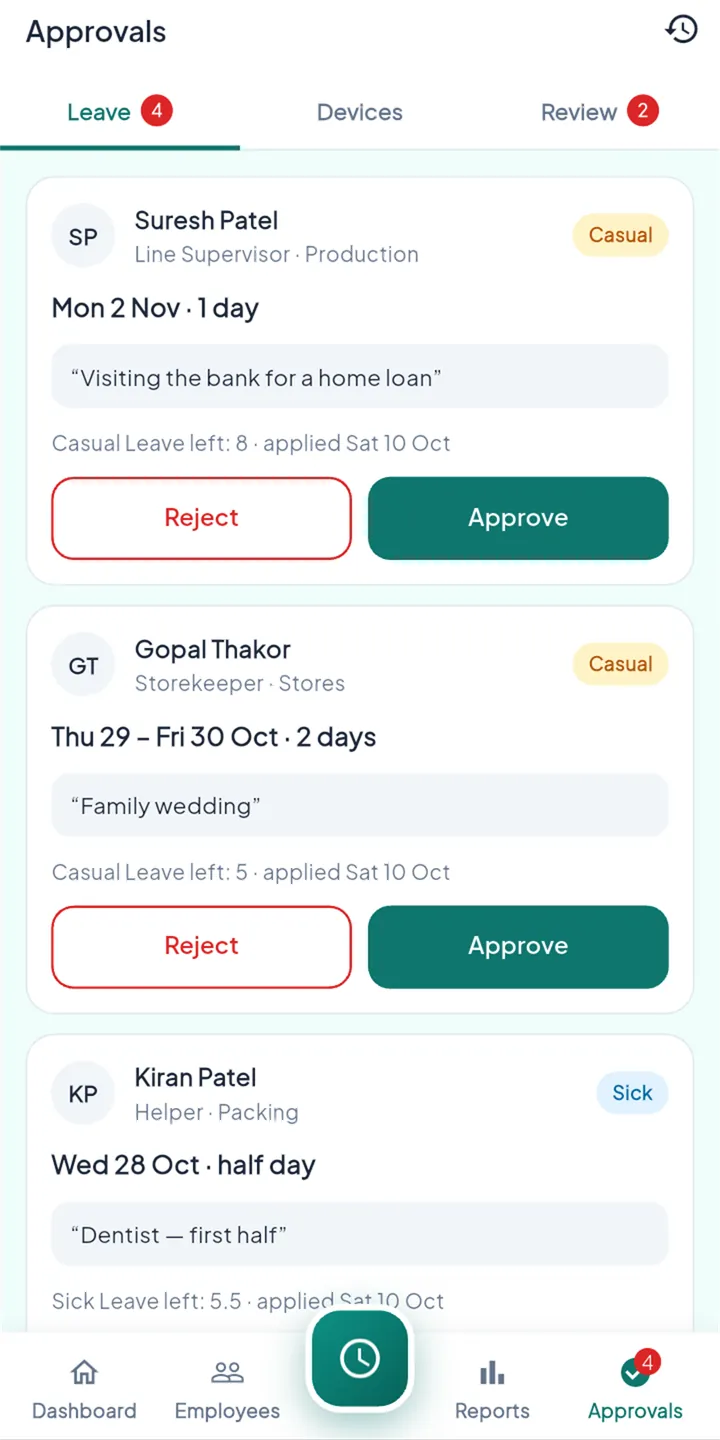
The request shows how much leave is left. Approve or reject, and the person is told.
Every request, with the balance.
- Dates, type, reason and leave left on each request
- Half-day requests, first or second half
- Holidays inside a leave aren’t counted as leave
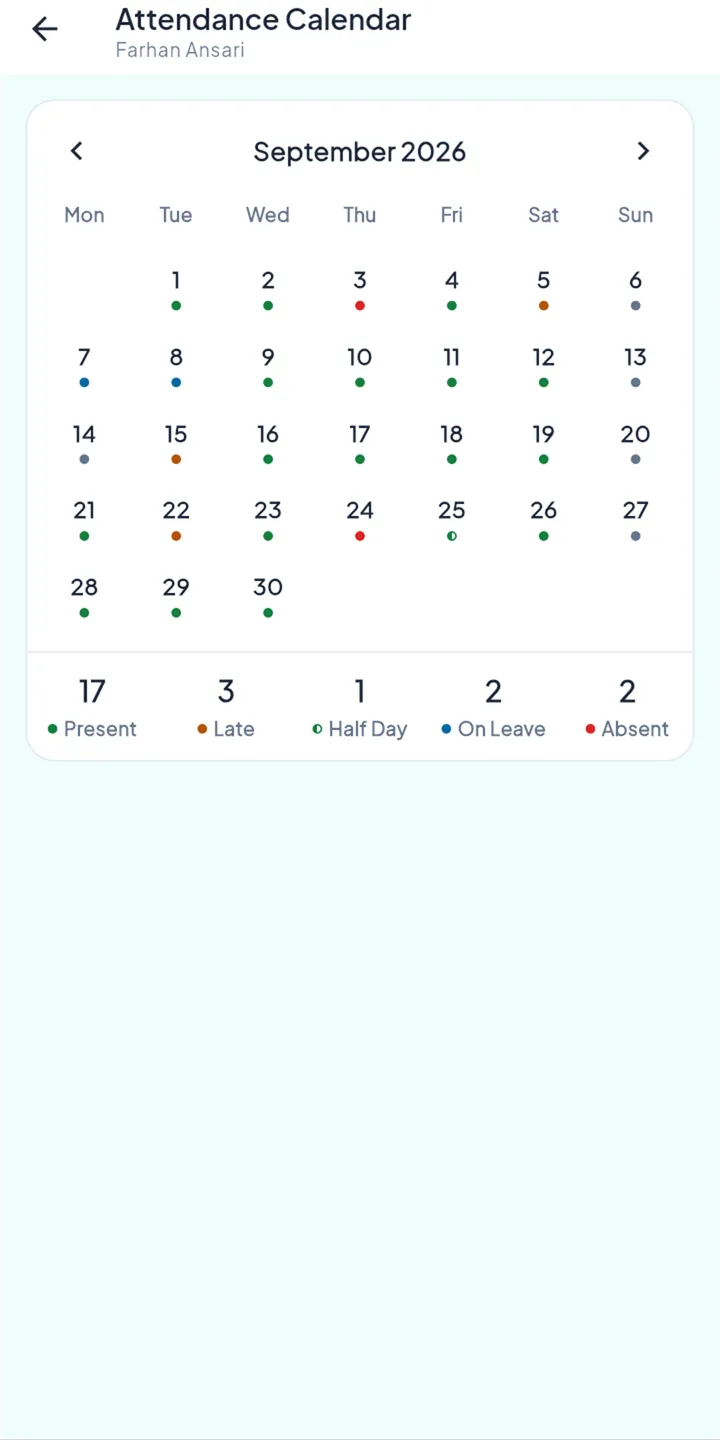
Their balance, always up to date.
- How much of each leave type is left
- The status of every request
- Approved leave on their calendar
Why you can trust it
The rules behind it.
Balances are counted for you
Approved leave comes off the balance automatically.
Straight into salary
Paid leave is paid, unpaid leave is deducted, with no retyping.
Holidays respected
A holiday inside a leave isn’t charged as leave.
Questions
Can someone take half a day?
Yes. Half-day leave can be for the first or the second half.
Who approves leave?
You, and anyone you give the leave-approval permission to.
Goes well with
Retire the leave register.
Get it on Google Play (opens in a new tab)App Store · Coming soon