 StaffBee
Share the work, keep the control.
Give a manager, HR person or supervisor exactly the access they need. Invite staff with a link, and approve any new phone before it can punch.
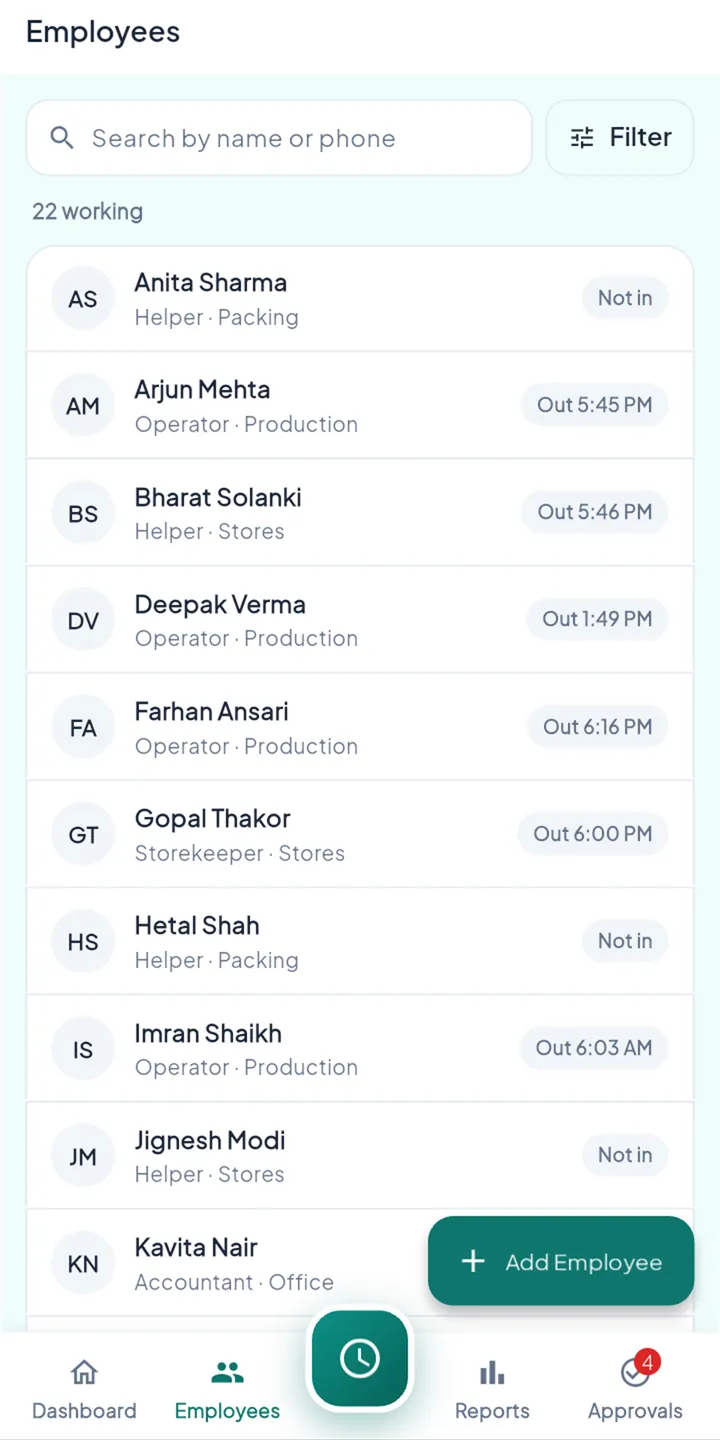
An owner can’t be at every branch. The people who are there need some access, not all of it.
Three steps, set up once.
- 1
Add people
Name and mobile number, workplace, team and shift. An invite goes on WhatsApp or as a QR code.
- 2
Give them a role
Manager, HR, supervisor or employee, renamed to suit you if you like.
- 3
Choose what each role can do
View or mark attendance, approve leave, see salaries, run payroll, export reports: one switch each.
Everyone, and who can do what.
- Your whole team with today’s status
- Permissions per role, on one screen
- New phones waiting for your approval
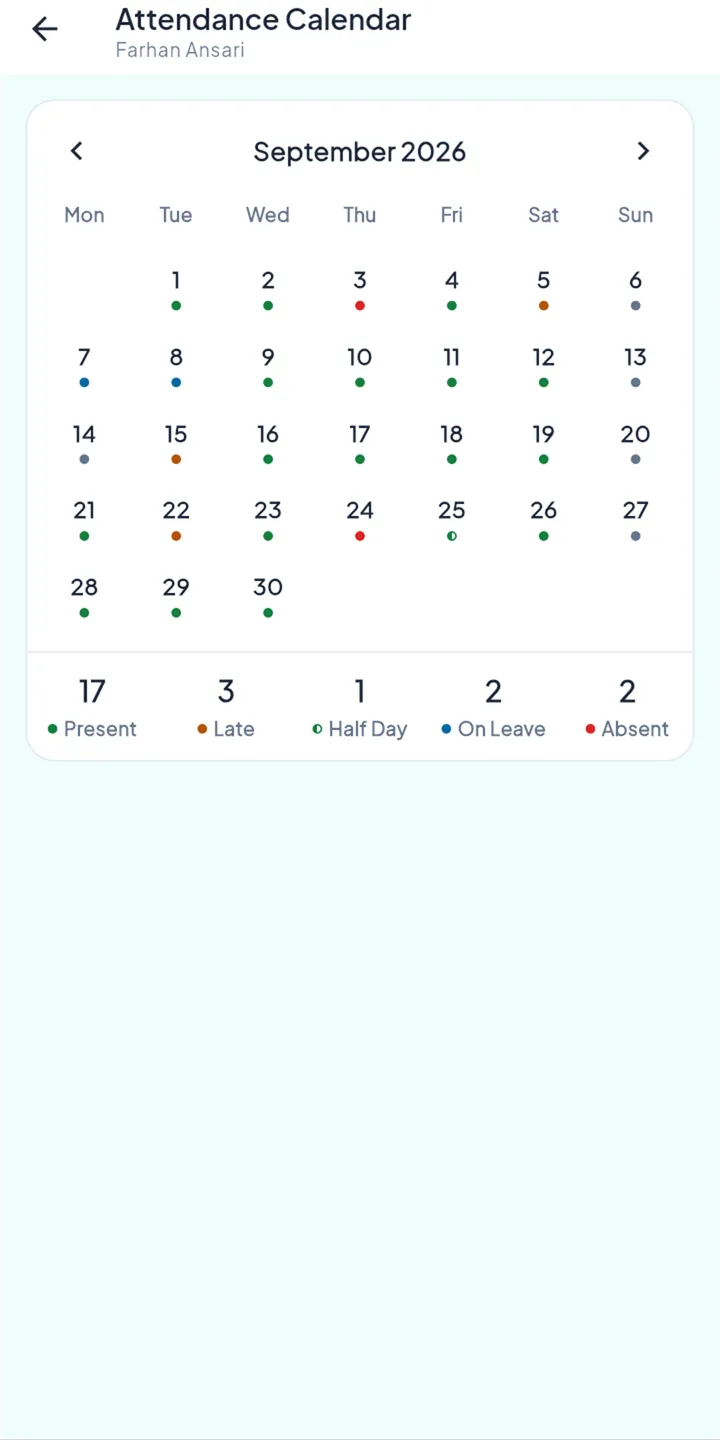
Only what their role allows.
- Employees see their own days, leave and payslips
- Supervisors see their own workplaces and teams
The rules behind it.
Checked on the server
Permissions are enforced by StaffBee’s server, not just hidden in the app.
Some things stay yours
Approving and paying payroll and changing permissions are for the owner only.
One phone per person
Signing in on a new phone needs your approval.
Everyone is counted
Managers, HR and supervisors punch and are paid like everyone else.
Questions
Can a supervisor see salaries?
Only if you give their role that permission.
What happens when someone leaves?
Deactivate them. Their records stay for your reports and salary history.